Getting Started
Follow these quick and easy steps to get started with your mocopi!
Step 1
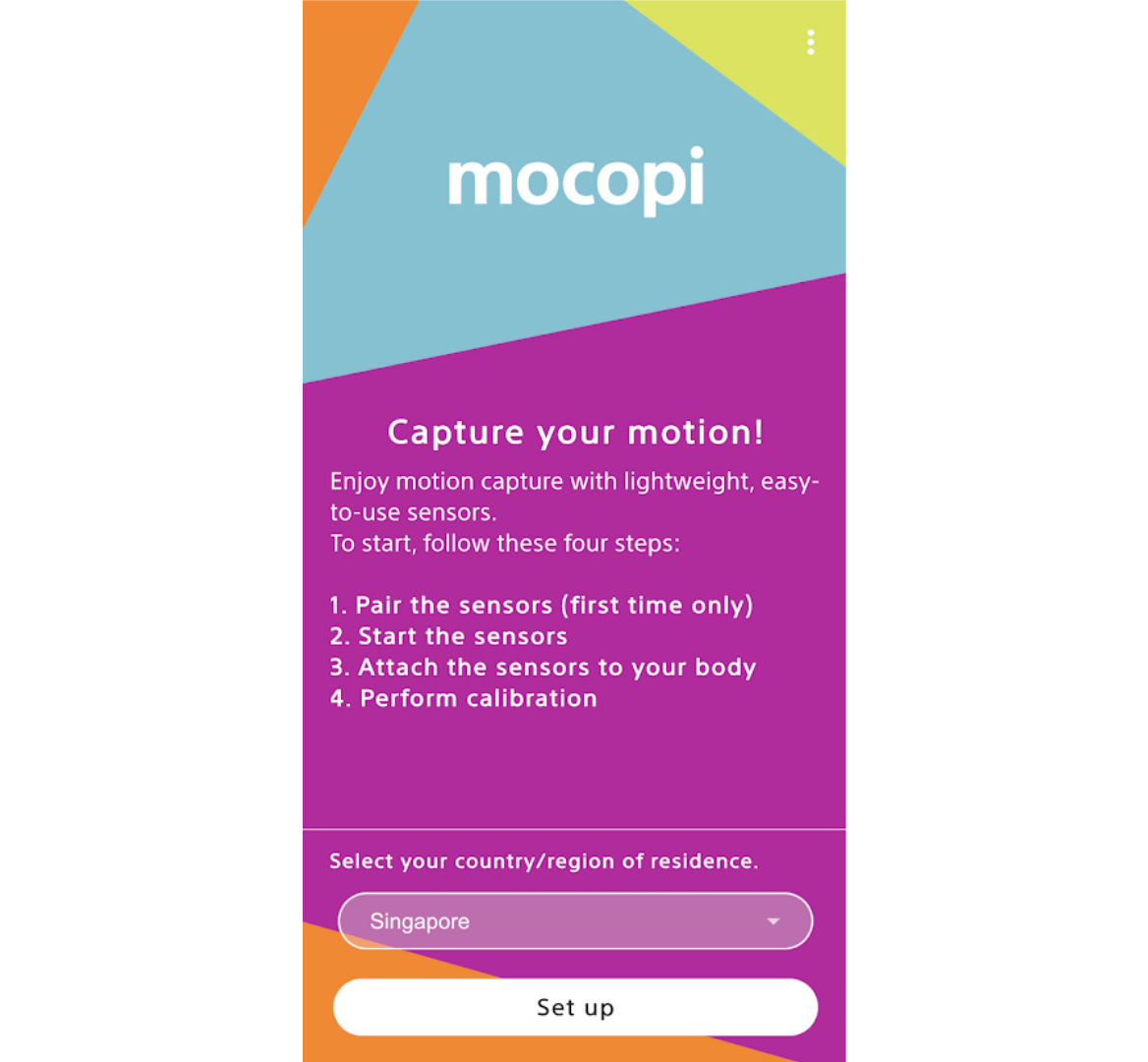
Find mocopi wherever you get your apps and download it. Then, launch the app and tap "Start setup".
Step 2
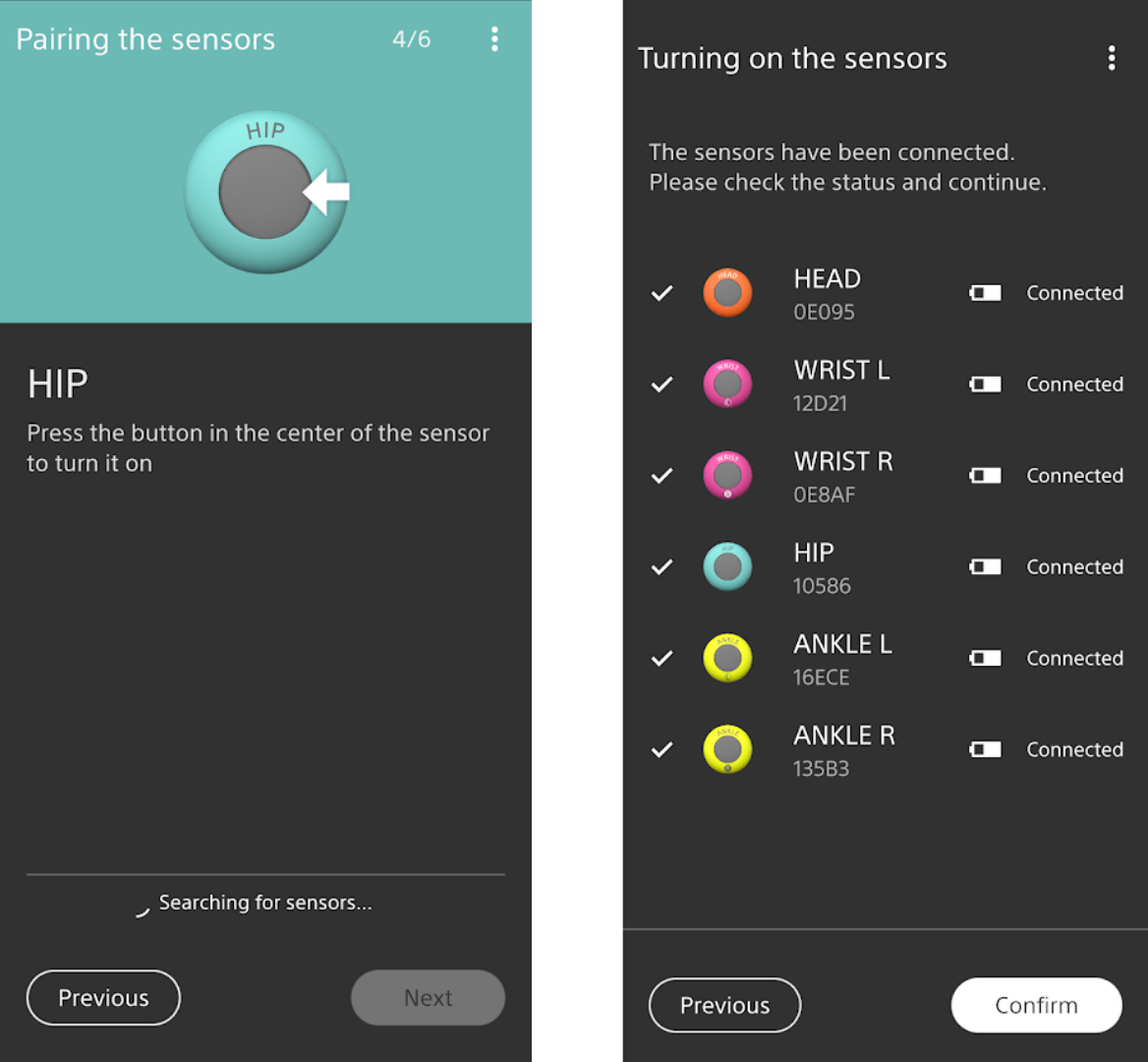
Pair the sensors with your smartphone by pressing and holding the centre button. Check the serial number on the back of your sensor and select it in the app. Then repeat for all six sensors. You’ll only have to do this the first time you use it.
Step 3
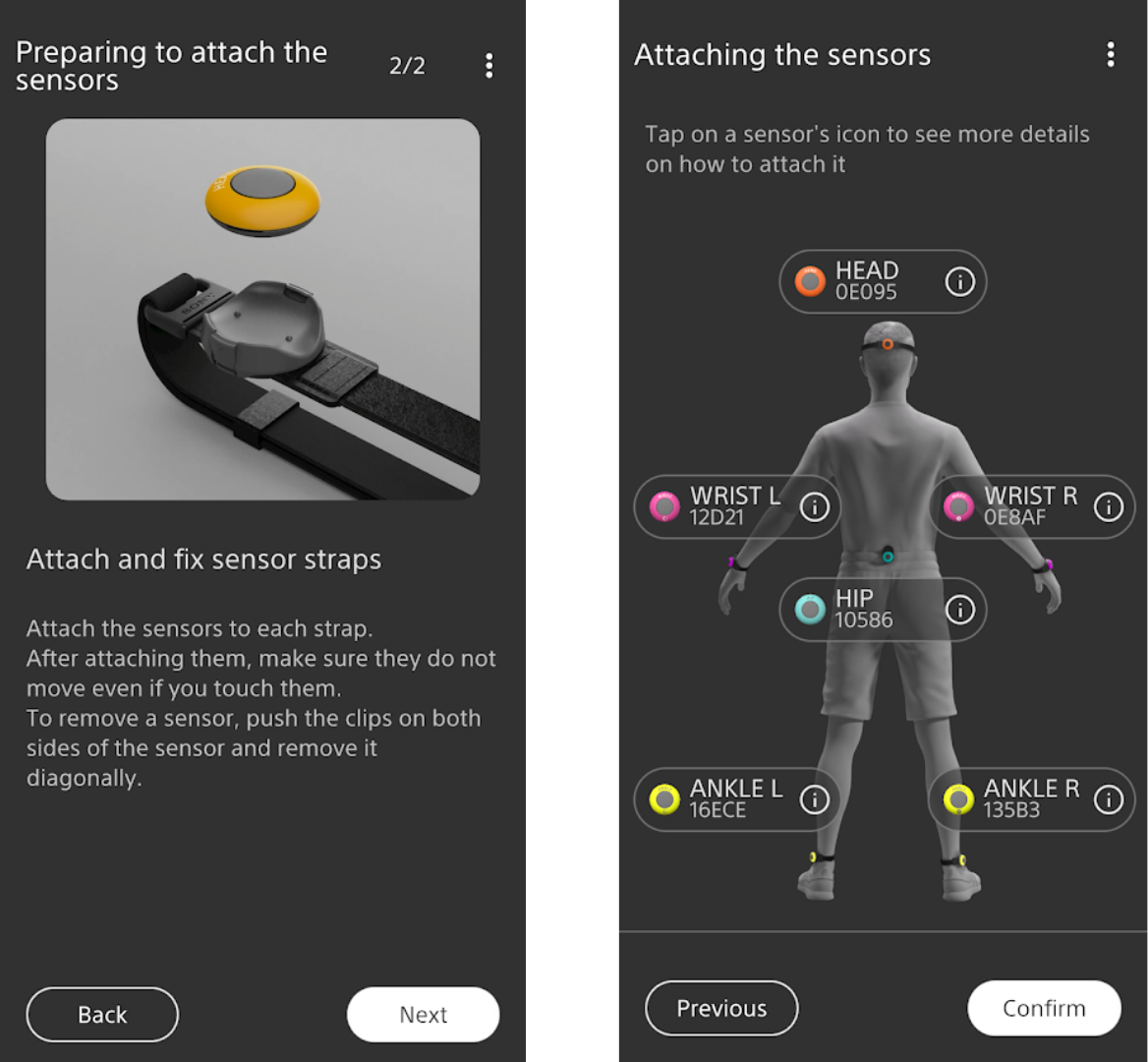
Clip the correct sensor onto your head, wrists, hip and ankles, and make sure they’re securely fastened and won’t move when you do.
Step 4
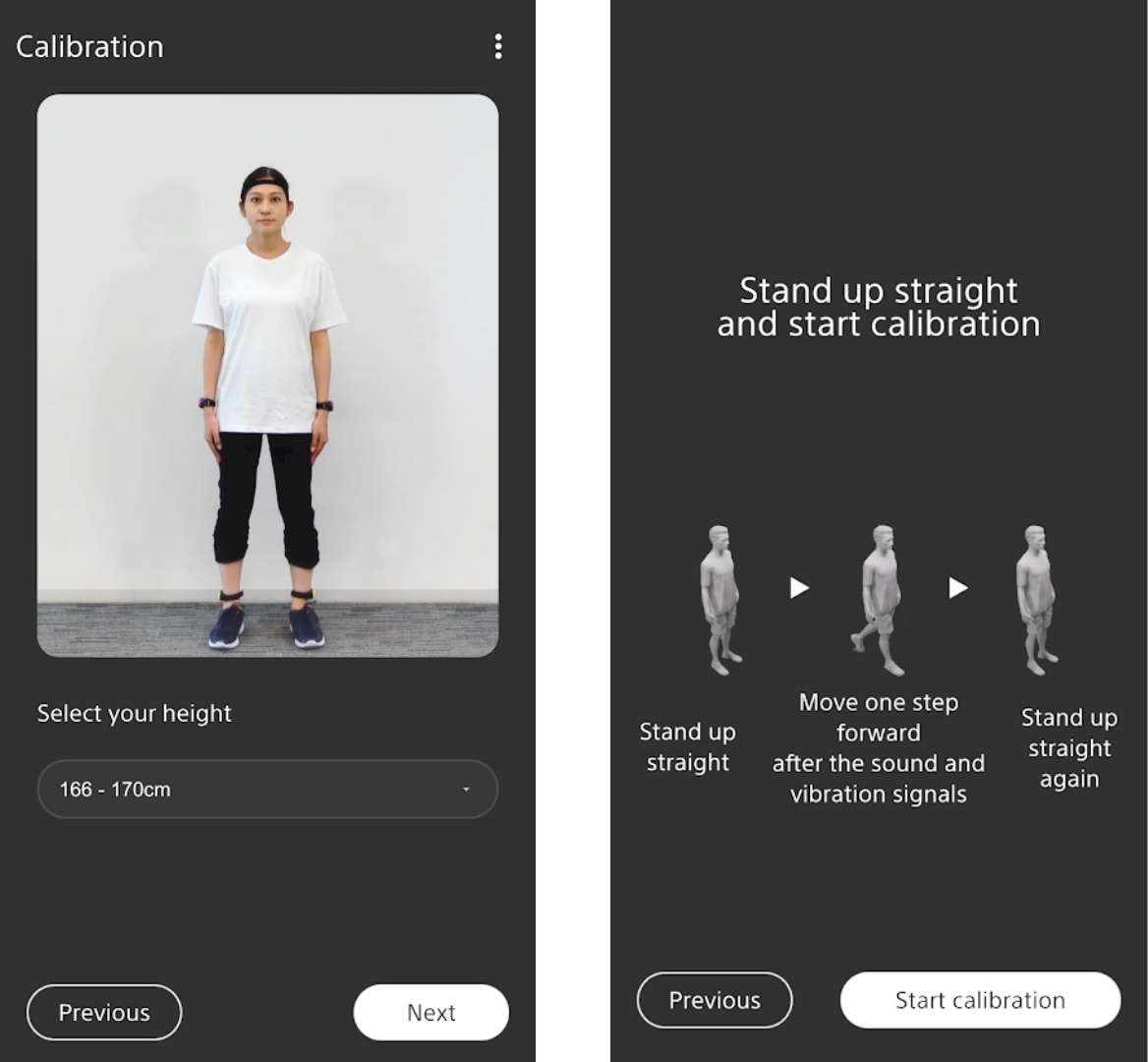
The mocopi app will now show the calibration window. First, select your height and then follow the instructions in the app and perform a few simple body actions.
Step 5
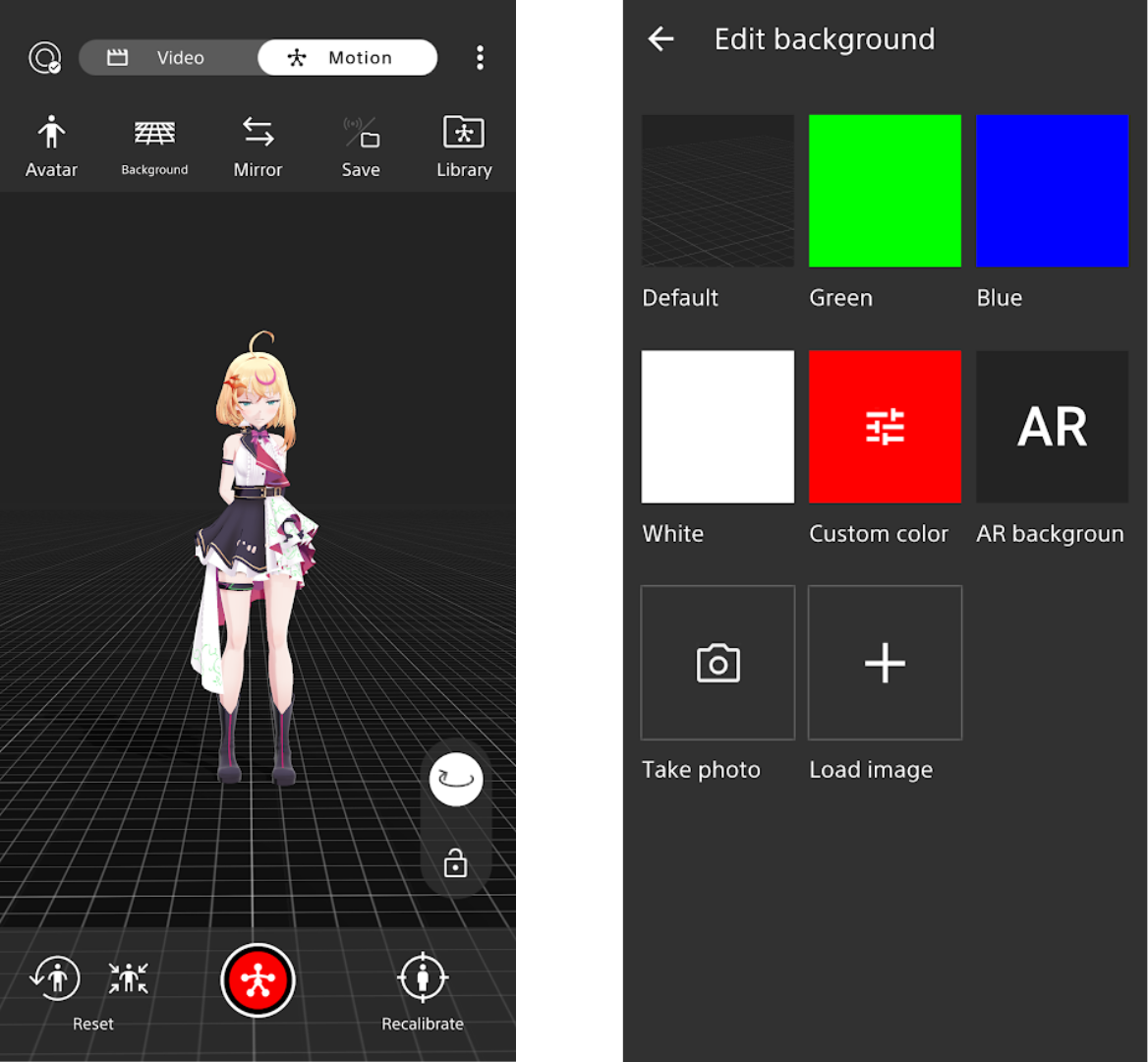
Click "Avatar" or "Background" at the top of the interface. You may import your avatar from supported providers.
You can also select a backdrop from pre-installed images or from a green screen. In AR background mode, AR movie of your avatar in the real world will be created.
Step 6
Tap the "Motion" button on the app. Then, all you need to do is click the red circle button to begin recording. When you’re done, you can save your movie to local storage or transfer it to a PC.
